
Attachments
Put files and images on a card from the paperclip, a paste or a drag. Needs a sync server.
Attachments are currently supported only with the self-hosting setup: they require a sync server.
Having attachments with the local setup is on the roadmap.
How to attach files to a card?
- Attachments button on the card
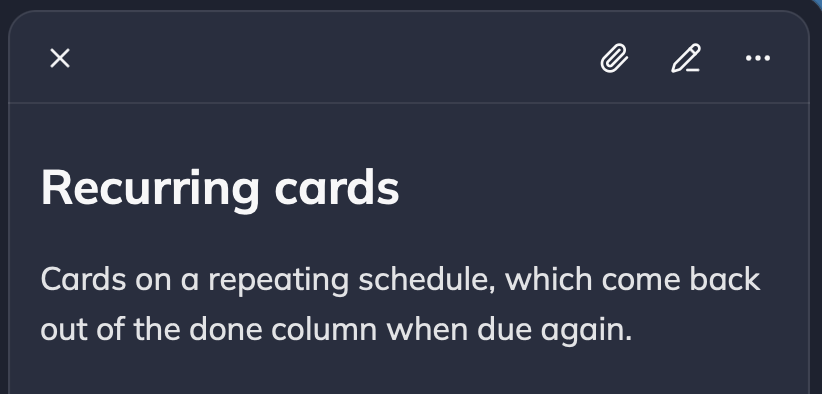
The paperclip in the card header opens the attachments panel.
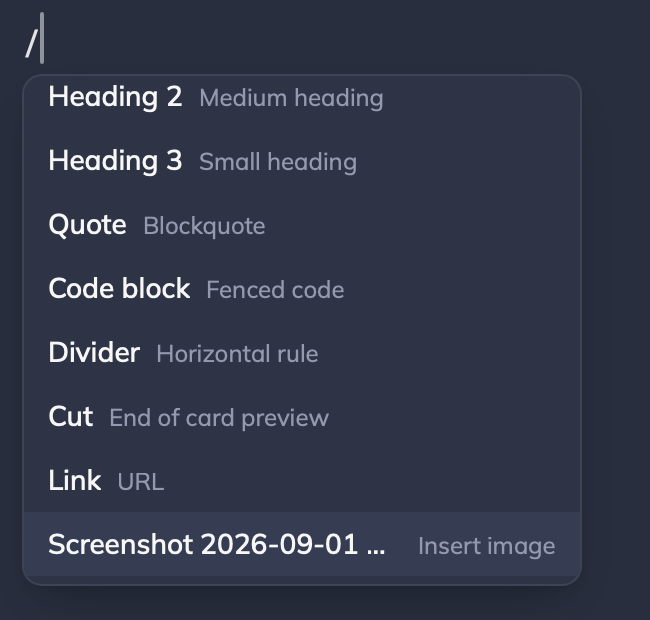
Attached images can then be referenced via the slash menu:
- CMD+V or Ctrl+V with the attachment in the buffer
Focus the card's body, and paste an image.
- Drag and drop the file to the card
Deleting files
In edit mode on the card, click the x near the attachment to remove it.