
Sync to a local folder
Sync a board to a folder on your own disk with the desktop app: columns become folders, cards become Markdown files.
Syncing to a local folder is currently available only with the desktop app.
How to sync a board to a folder on a device?
-
Create a board, or go to an existing one
-
Select a folder
Click the button with the folder icon on the board header.

Then choose the folder:
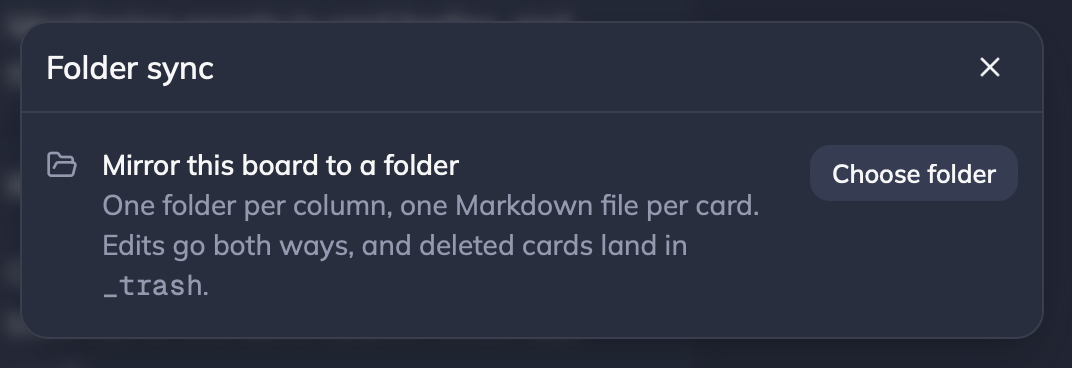
- Folder is synced
After the folder is selected, it will hold the columns as folders, and the cards as Markdown files. They sync both ways.
There will also be special folders: _trash and _files.
- Trash folder holds recently deleted cards. Cards deleted in the app land there first, so they can be restored via the app, or manually by dragging the file back.
- Files folder holds the board's attachments.